Windows PowerShell Cheat Sheet
Overview
This Windows PowerShell cheat sheet helps you start quickly with the bash-equivalent tool on the Windows environment. I was a fan of Linux’s terminal and found Windows Powershell so “lame”. I was so wrong. Windows Powershell is mighty too.
Let’s find out what it can do.
Basic Windows PowerShell Commands
Here are the most common commands you do on a daily basis with any terminal.
Create new file
On Linux, you can use the touch command, on Windows Powershell, you use new-item:
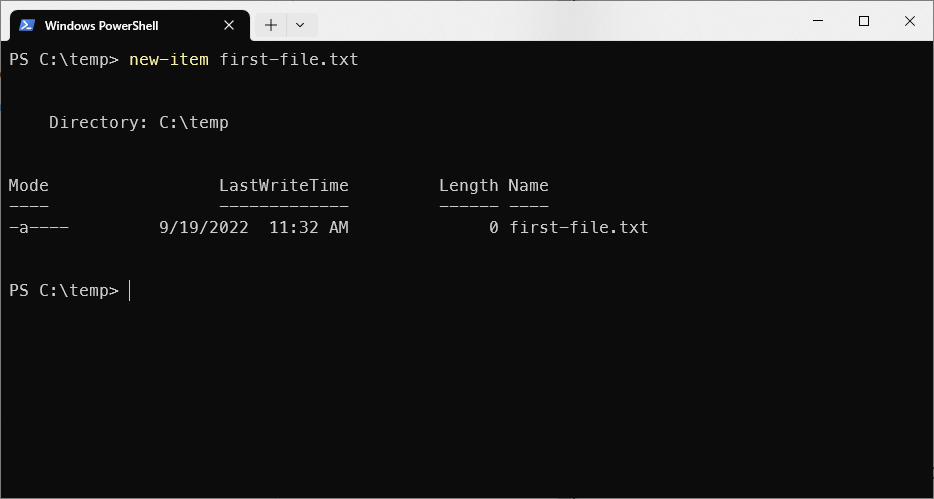
Create a new file in windows powershell
Write content to file
You can write content to files similar to what you do on Linux. The following command writes content to the file and overwrites all existing content:
"Some file content" > .\first-file.txt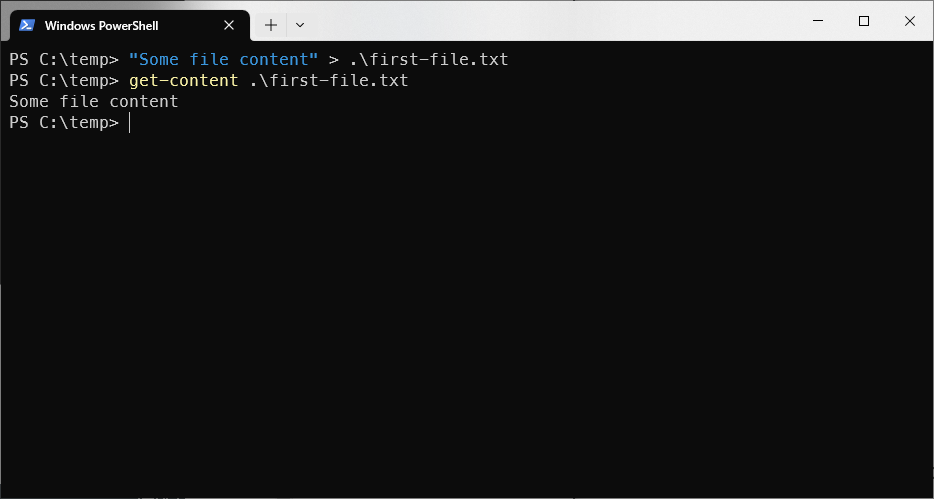
Write content to file using PowerShell
If you want to append, instead of overwrite, you can use >>
"Append a new line" >> .\first-file.txt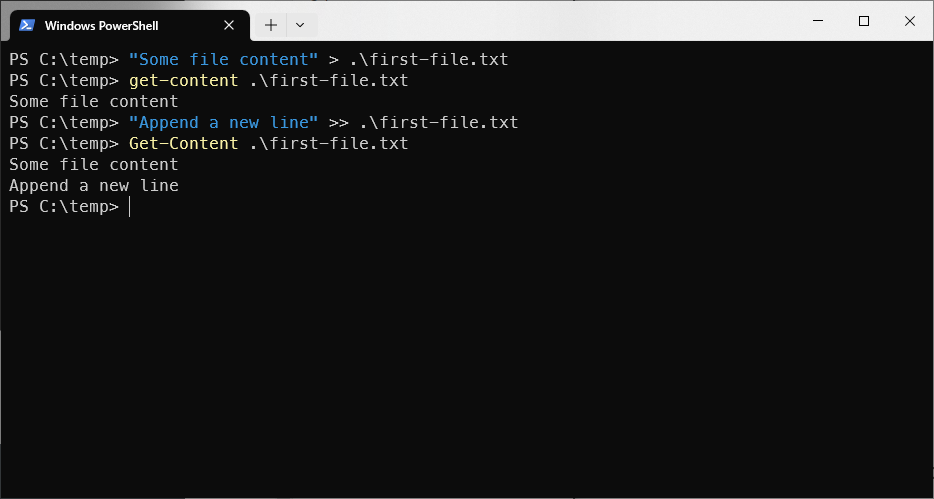
Append text to file instead of overwriting
Read content from a file
As you can see from the screenshots above, you can read content from a file in Powershell using get-content.
Variables
Let’s get a bit more advanced. You can create variables in Windows Powershell quite easily
# Declare a variable
$name = "Luis"

# print the variable
$name

# Doing arithmetic
$sum = 1+2

$job = "developer"

# String concatenation
$name + " is a " + $job
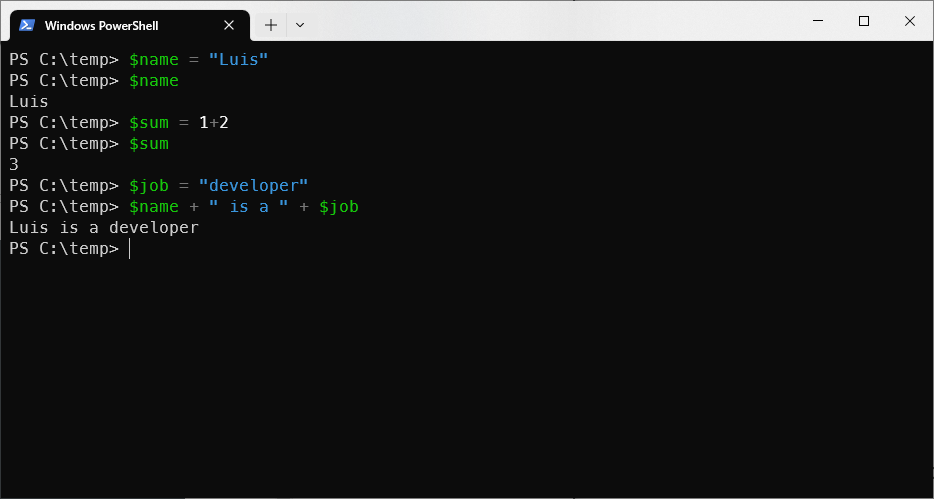
Basic operations on variables
Comparison in Windows Powershell
You can do comparisons (equals, greater than, less than, not equals in Powershell quite easily)
Basic comparison
# compare numbers

# equal comparison
1 -eq 2 # False

"a" -eq "a" # True

"a" -eq "b" # False

# not equal comparison
1 -ne 2 # True

# less than comparison
1 -lt 2 # True

# greater than comparison
1 -gt 2 # False
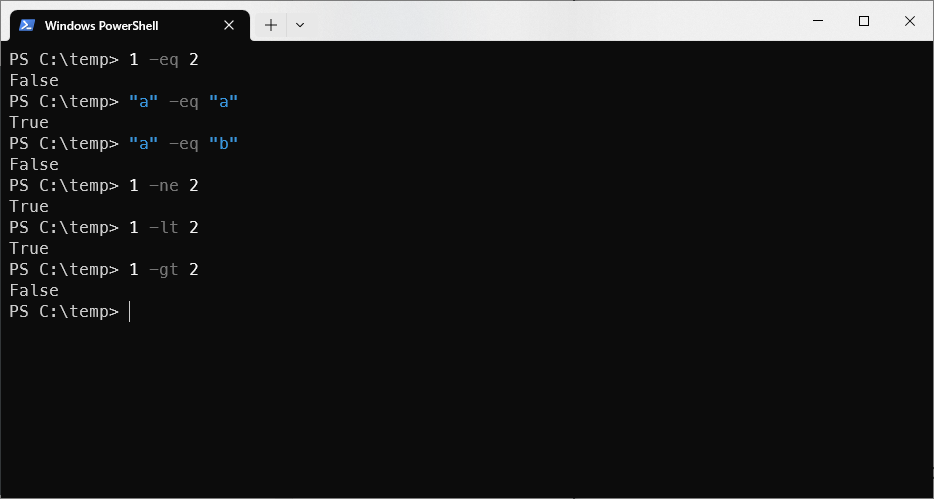
Basic comparisons in Windows Powershell
String comparison
Besides supporting basic string comparisons, as shown above, Powershell also supports more powerful comparisons for strings:
By default, when doing a comparison between strings, PowerShell doesn’t take casing into account. Thus, you will see “Orange” equals “ORANGE”
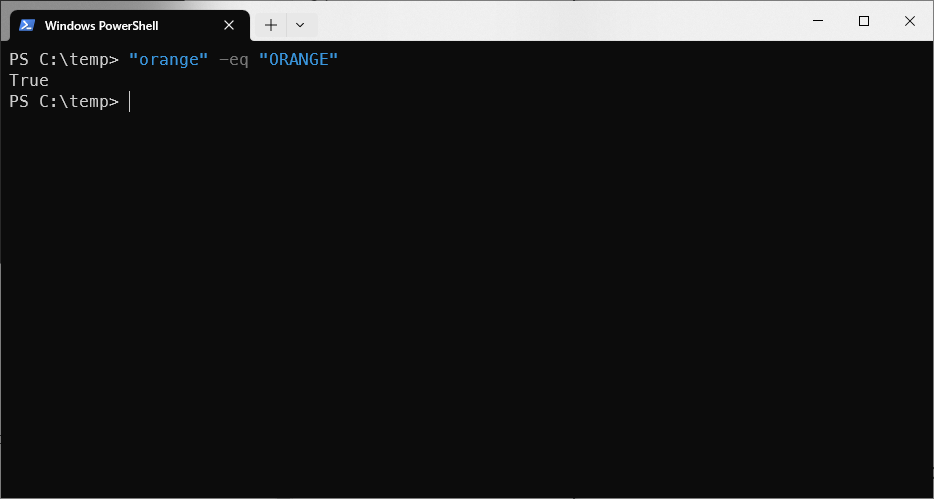
Case insensitive comparison
Case sensitive comparison
If you want to also check case-sensitive equals, use -ceq instead of eq
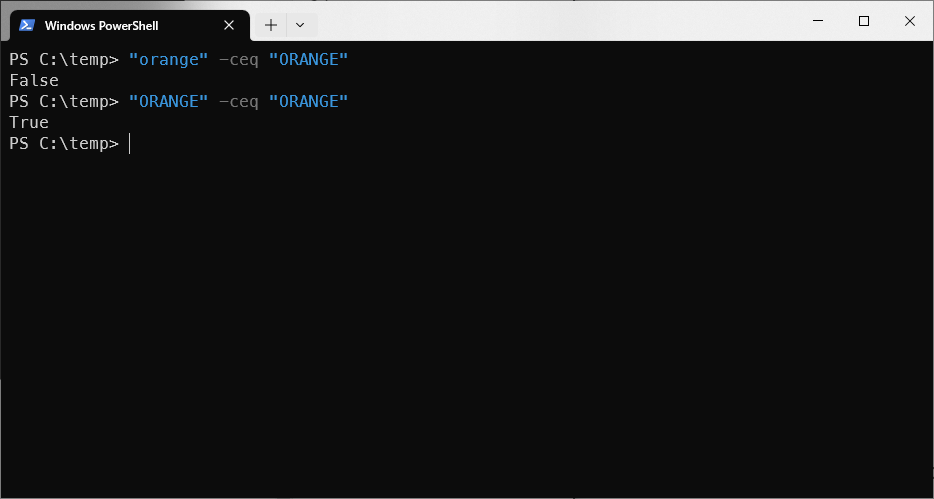
Case-sensitive string comparison
Wildcard comparison
There are times you want to do wildcard (not regex, if you want to use regex, use -match) with string. For example, you want to check if “Orange” starts with “Or”.
You will want to use the -like operator
"Orange" -like "Or*"

 "Orange" -like "*an*"

"Orange" -like "*g"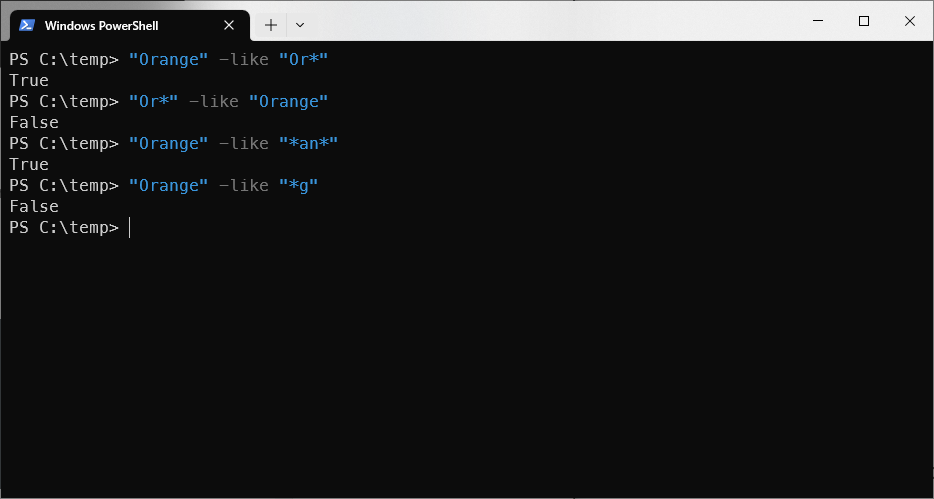
Wildcard matching in Powershell
As you can see, the * character represents 0 or many characters.
If you want to represent exactly one character, use the question mark(?) instead:
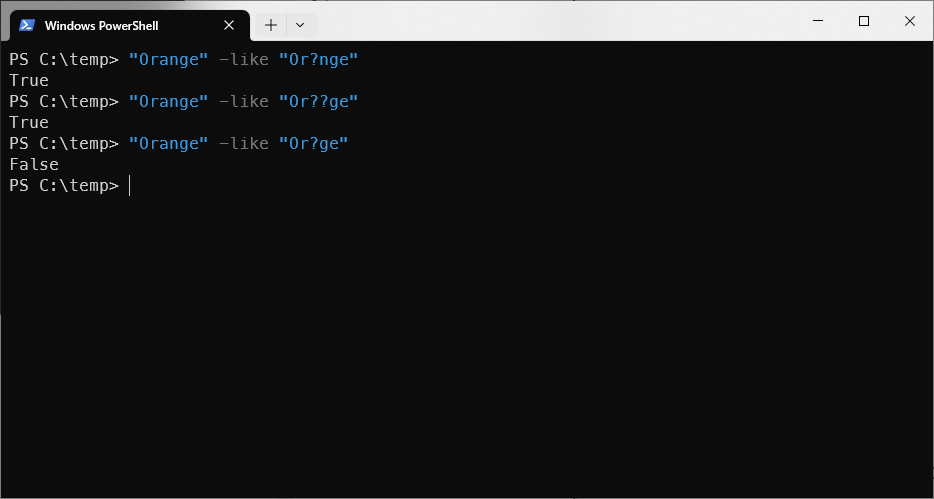
Exactly one character matching with ?
Regex matching with -match
You can use -match to do regex matching in Windows Powershell.
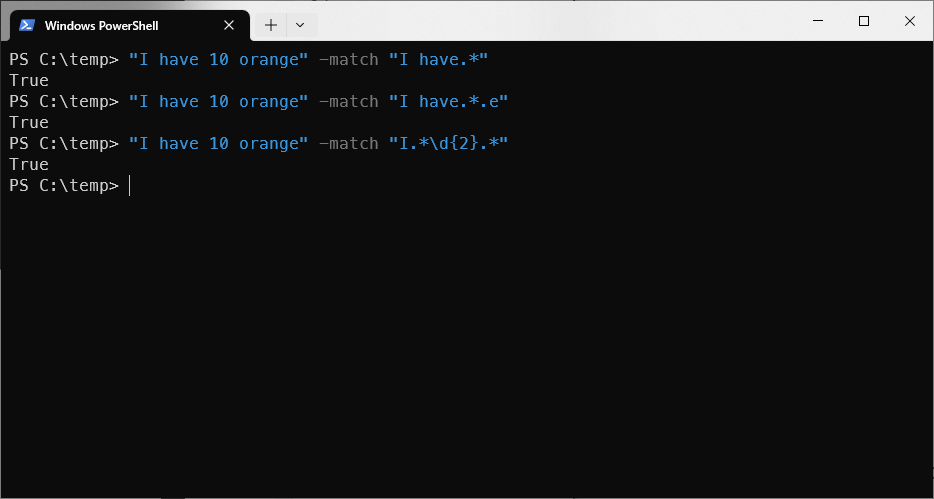
Regex matching with -match
Alias
If you are familiar with commands like ls, touch, cat… in Linux, you can use such commands on Windows Powershell using an alias.
To create an alias use set-alias:
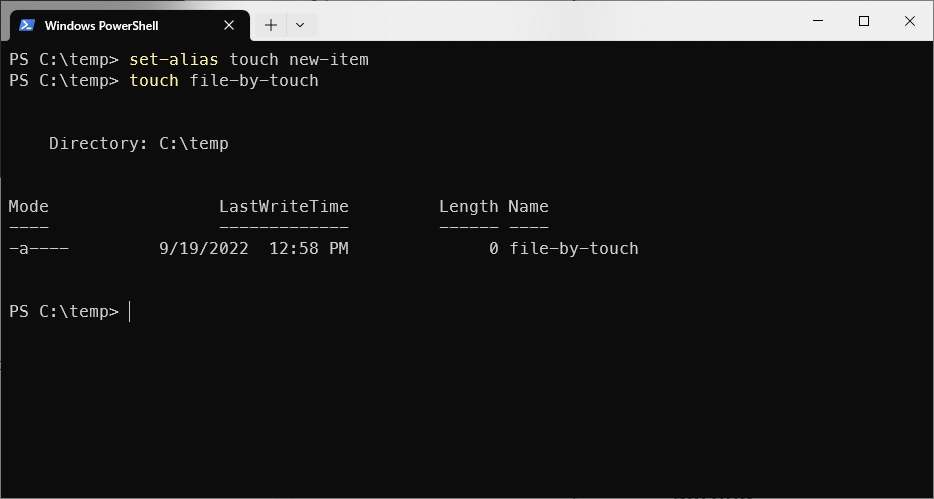
Creating an alias using set-alias
In the screenshot above, I created an alias for new-item and named it touch (similar to that of Linux).
Then, I could use the touch command to create a new file.
Objects
Almost anything in Powershell is an object. If you come from object oriented programming language, you know that object has method and properties (members).
To get all members of an object in Powershell, use get-member after the pipe character.
For example, to get all members of a certain string:
"some string" | get-member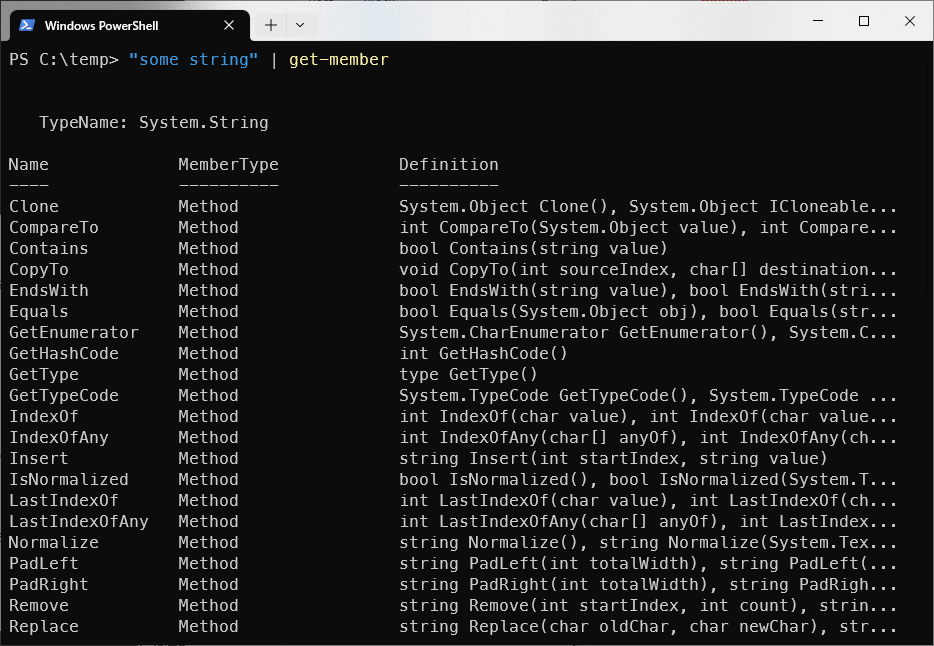
Members of the string type
As you can see, there are a lot of operations you can do on a string. Let’s try some common methods:
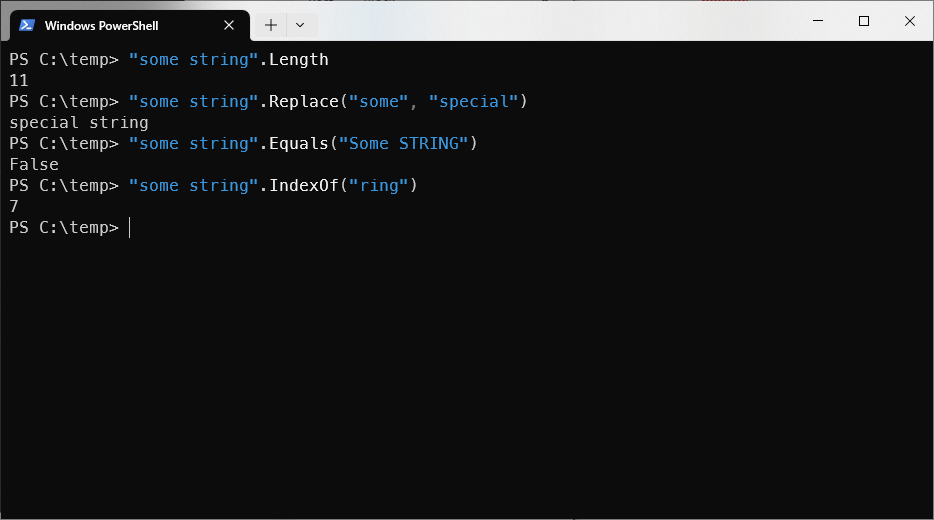
Some common string operations
Even a number, which in other programming is considered “primitive” is an object in Powershell
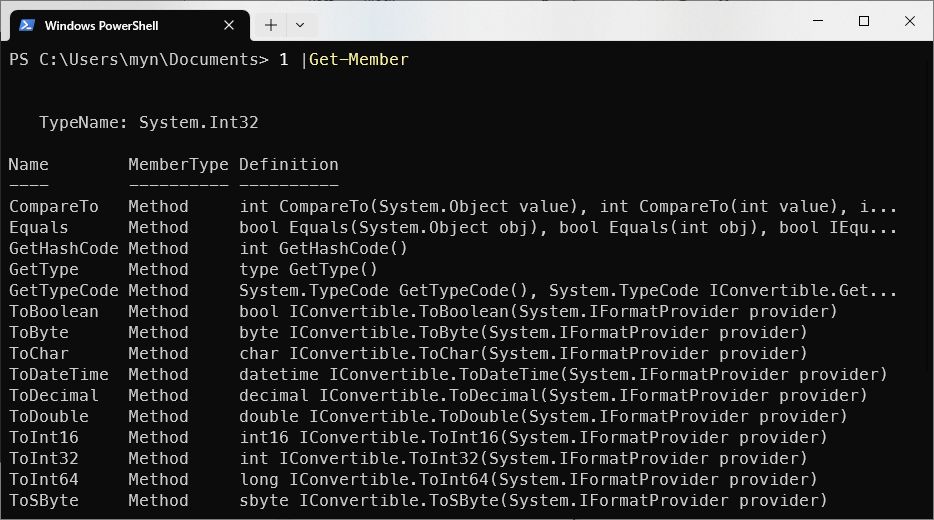
A number is also an object in Powershell
Filter a list
Imagine you do a dir or ls in a directory that has many files and you want to filter out files that don’t begin with the letter s.
ls | where{($_.Name -like "s*")}You can filter results in Powershell using where
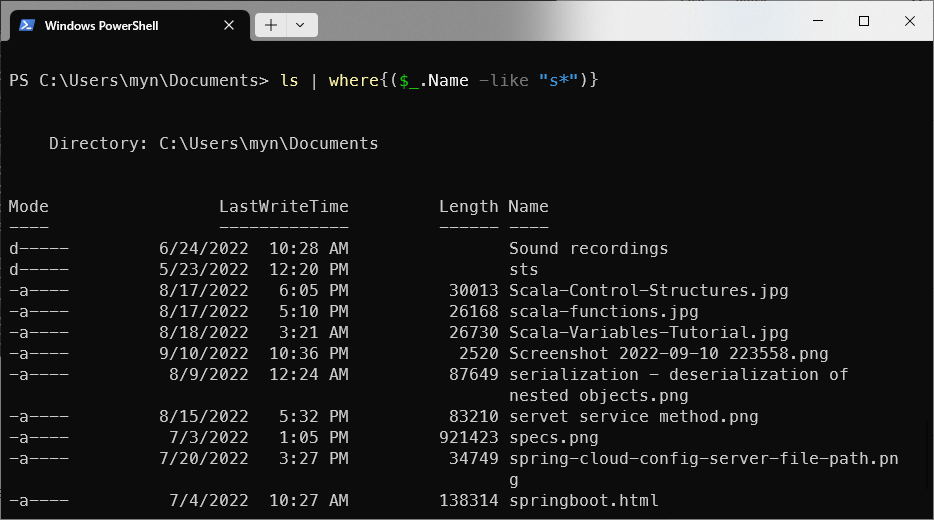
Filter list of directory using where
You can use multiple where conditions, not just one. For example, in addition to having a name that begins with the letter s, you also want to get the files that have a length greater than 3000:
ls | where{($_.Name -like "s*") -and ($_.Length -gt 3000) }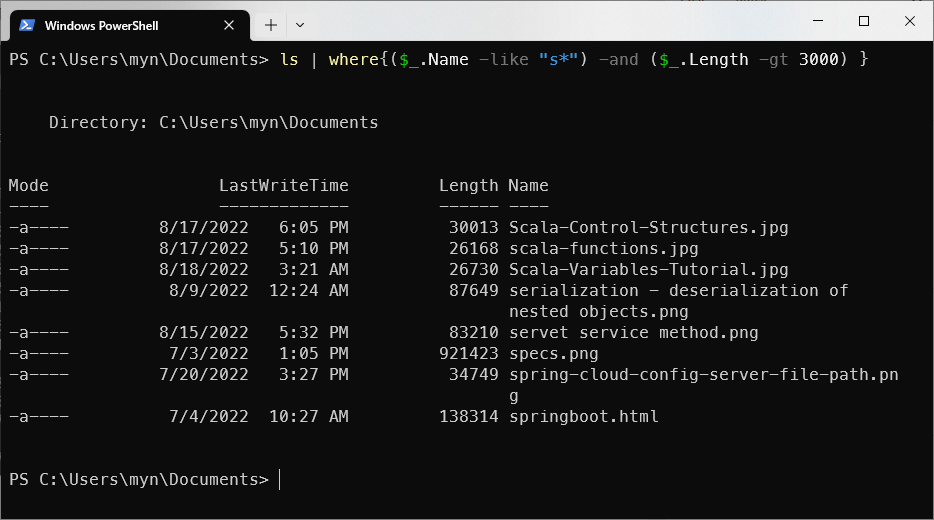
Multiple filter conditions using -where, -and
Array
It’s very simple to create an array in Powershell
$animals = @("Dog", "Cat", "Lion")
$animals
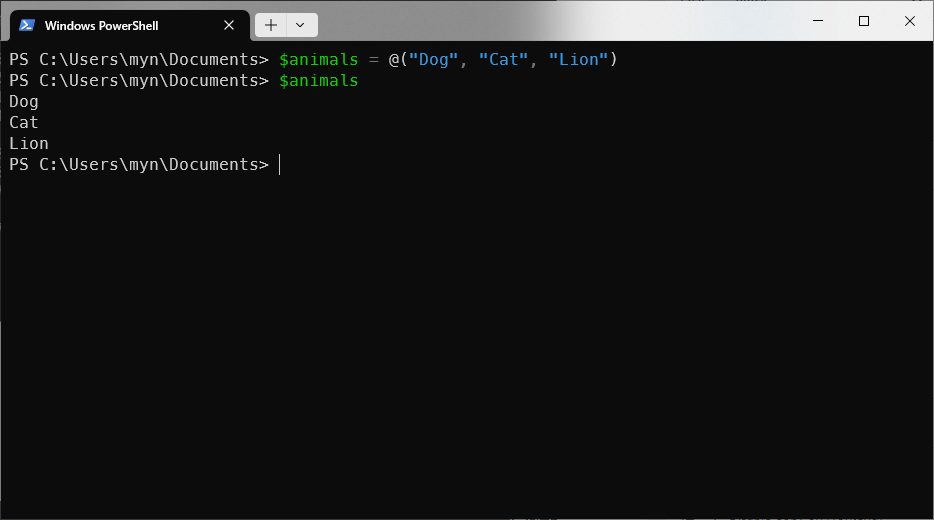
Create an array in Powershell
In Powershell, you can have multiple types within an array. For example, you can have both string and number in one array:
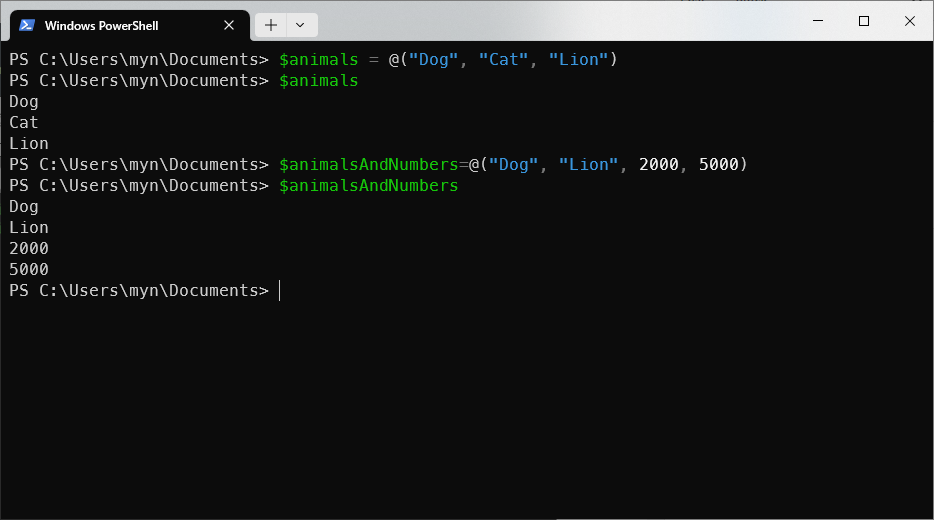
Multiple data types in an array
And you can do filter in the mixed-type array without any issues:
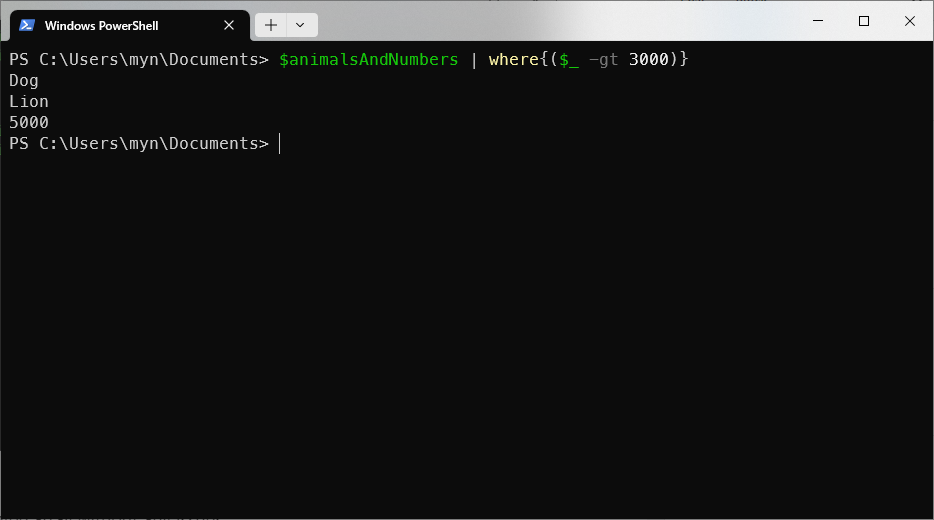
Filter on mixed-type array
You can add two arrays together to form a bigger array (duplicate elements are not removed, as expected).
Array in Powershell is zero-based:
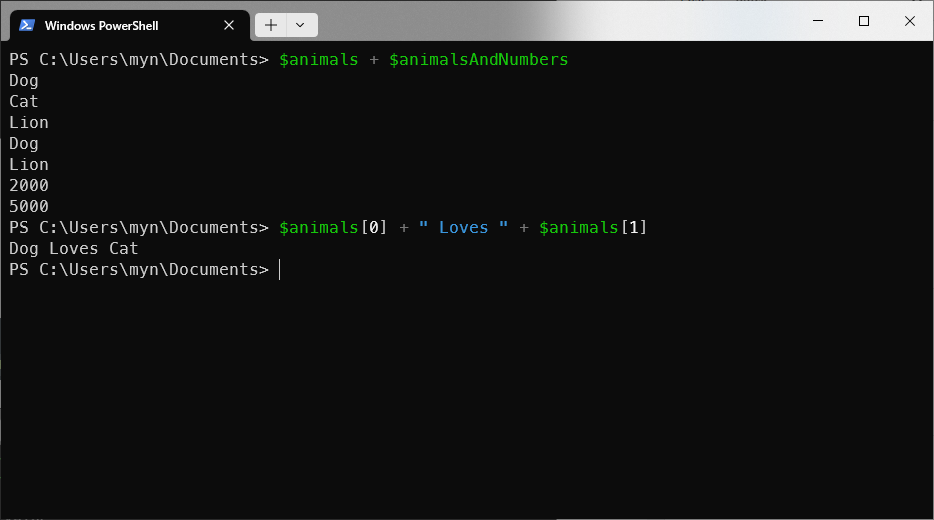
Operations on powershell array
HashMap/HashTable
Powershell supports HashMap data type. You can create a HashMap as simple as creating an array:
$carPrices= @{"Lexus" = 3000; "Ford Explorer" = 2700}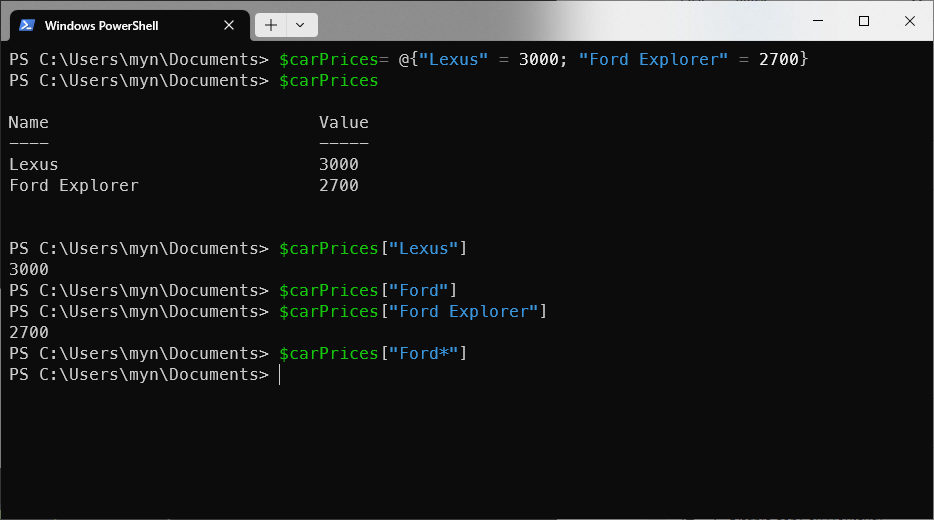
Declare a HashMap and get elements by key
As you can see from the example, you can only get the value by entering the exact key, wildcard querying is not supported.
Sorting
Sorting is a very useful tool in any terminal application.
Powershell has extensive support for sorting.
Sorting an array
Let’s create an array of animals and try the sorting function on that array:
$houseAnimals = @("Cat", "Dog", "Cow", "Hen", "Lice", "Mosquito", "Snake", "Buffalo")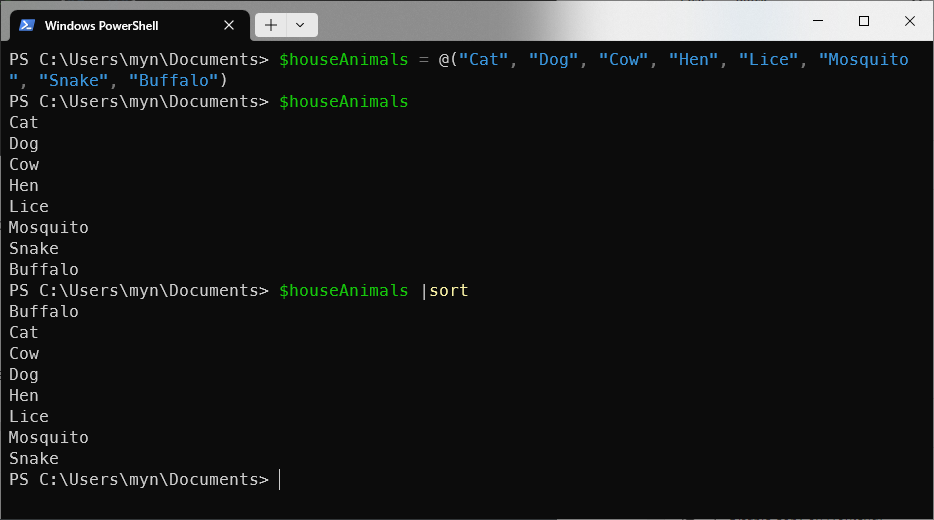
Sorting in powershell by default by alphabet, ascending
As you can see, by passing the sort function after the pipe, the list of animals appeared in alphabetic order.
If you want to change the order to descending, use the -desc option:
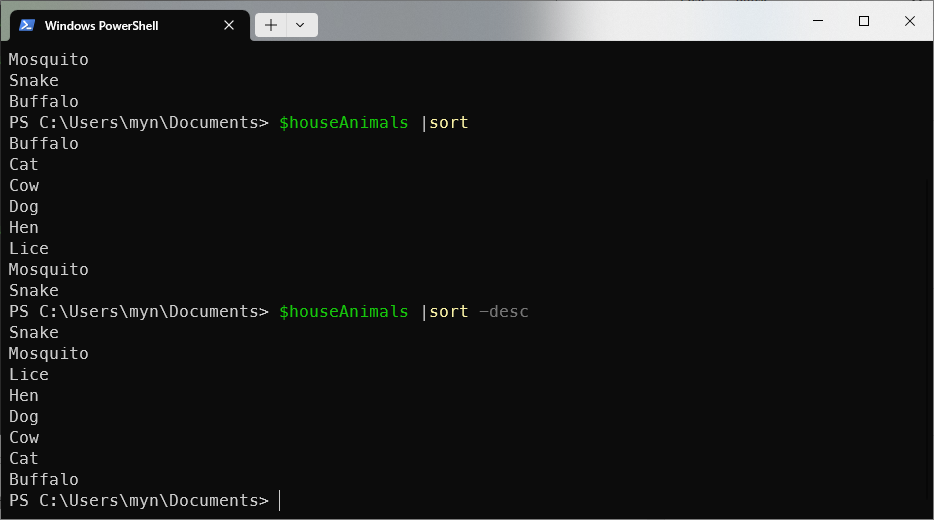
Sort in descending order
Sorting by attributes
Take the dir/ls command for example. The result of these commands is a list of files in the current directory.
By using sort, you can sort the output by various attribute such as file’s name, file’s size, last write…
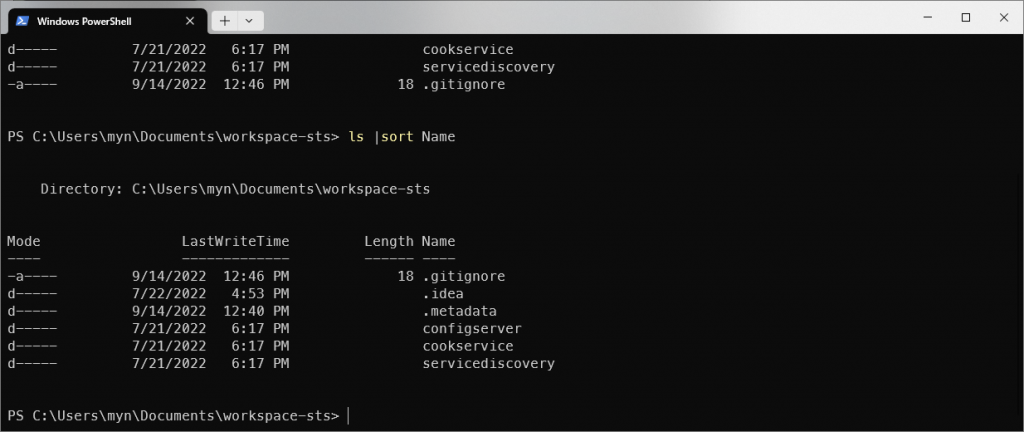
Sort list of files by name
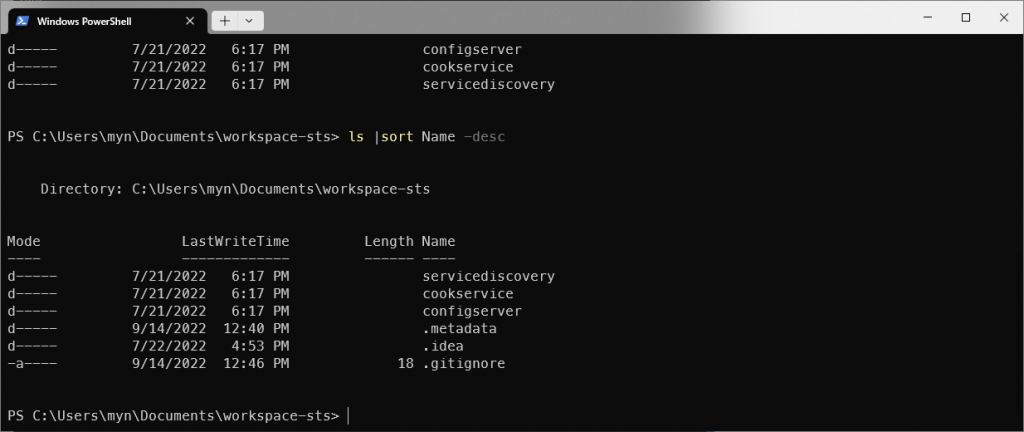
Sort by descending order
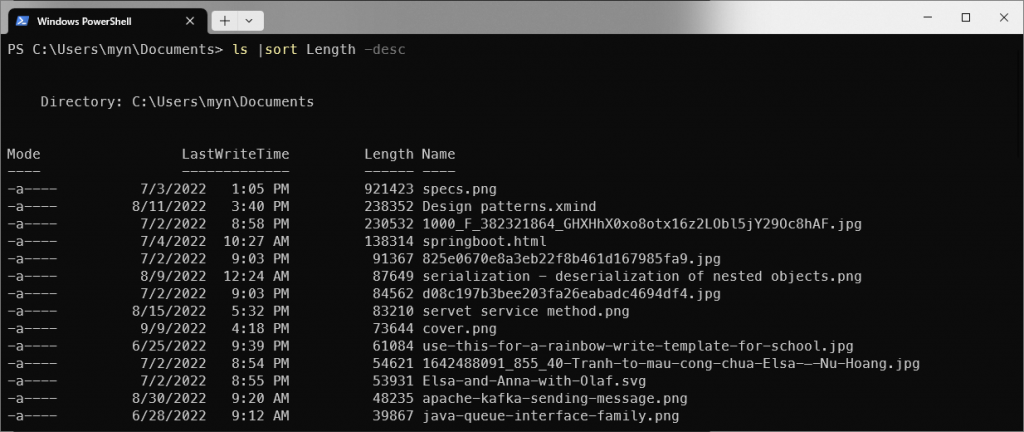
Sort by file size, descending order
Conclusion
This post covers the basic commands of Windows Powershell. By no means it’s a comprehensive introduction to all features of Powershell. However, I think it’s enough for you to see the power of this shell. In my opinion, it can do many great things, as great as bash on Linux.